Console tour
The console is a dark, dense operator view. It opens at http://127.0.0.1:5173 when you run uv run interlock console, and it is the same page as the hosted console. Everything on it is driven by one WebSocket to the backend.
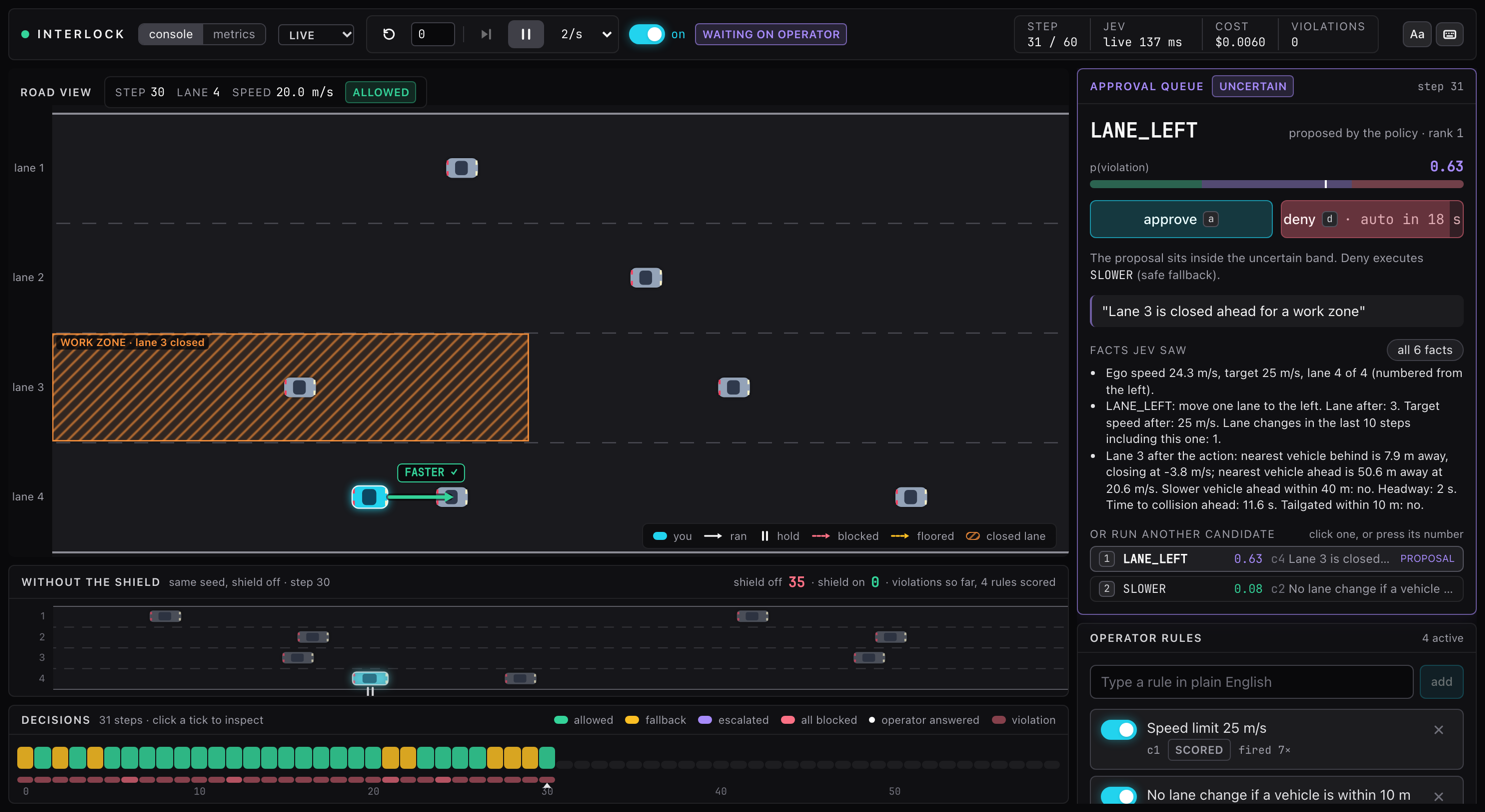
Layout
| Region | Where | What it does |
|---|---|---|
| Status strip | top | connection, source menu, transport controls, shield switch, one status badge, density and shortcut buttons, live stats |
| Road view | left, largest | ego-centered Canvas drawing of the road, vehicles, zones and the executed action, with a HUD and a legend over it |
| Unshielded twin | left, under the road view | the same seed with the shield off, faded, at the same step; hidden when no shield-off log exists for the seed |
| Inspector | left, in the twin's slot | replaces the twin while a tick in the decisions strip is selected, so the strip never leaves the screen; see Timeline and inspector |
| Decisions | left, bottom | one tick per step, colored by outcome, with the live run's violations and the twin's under it and a step axis; click to inspect |
| Approval queue | right, top | the open escalation, or a one-line idle state with the counts of answered ones; see Approval queue |
| Operator rules | right, below the queue | rules, presets, zones and thresholds; see Rules and zones |
The "console" and "metrics" tabs in the strip swap the whole area below the strip for the Metrics tab. The strip is one row in every state: a fixed slot shows one status badge at a time, so nothing wraps when an escalation opens or a step is inspected.
Status strip

Left to right:
| Control | Meaning |
|---|---|
| Dot | green when the socket is open, red when it is reconnecting |
| INTERLOCK | the wordmark |
| console / metrics | which view fills the page |
| Source menu | reads live for the simulator; opens to the logged runs, newest first, and turns amber with the run's name while one replays; offline before the first message. See Replay |
jev mock |
an amber badge when the server started without a judge; absent in live mode |
| reset and seed | the circular arrow starts a fresh episode on the seed typed next to it; reset also ends any open escalation. Below 1536 px the transport buttons show icons only, with their names in tooltips |
| "step" | advance one step; disabled while playing, while an escalation is open, and after the episode ends |
| "play" / "pause" | run at the chosen speed; disabled after the episode ends |
| Speed | 0.5/s, 1/s, 2/s or 4/s, steps per second; default 2 |
| shield switch | on (cyan) or off; toggles the shield on the current seed; disabled in replay |
| Status badge | one slot, the most urgent state wins: "waiting on operator" while an escalation is open, "inspecting N" while a tick is selected, "episode over" after the last step or a crash, otherwise the latest step's outcome with → ACTION when the executed action differs from the proposal |
| step | current step, over the episode length (60) or the replay length |
| jev | source and latency of the latest step's judging; hidden below 1440 px and at talk density |
| cost | Jev cost so far this episode; hidden below 1440 px and at talk density |
| violations | executed actions the ground-truth checkers labeled as violations so far |
| Aa | in the corner: talk density, larger type for a projector, see below |
| Keyboard button | beside it: opens the shortcut list, the same as pressing ? |
On the metrics tab the transport controls give way to the report's generation time, seed count, thresholds and judge mode, and the live stats hide.
Road view
The road runs left to right with lane 1, the leftmost lane, at the top, and the lane labels in a gutter at the left. The view is 160 m wide and the ego vehicle (cyan, outlined, with a glow) sits 50 m from the left edge, so 110 m of road ahead is visible. Other vehicles are grey; every car has headlights at the front and taillights at the rear, so the direction of travel is obvious, and the lane dashes scroll with the ego's speed. Positions are interpolated between steps so playback is smooth at any speed. A closed zone is hatched in orange with its name and lane. The HUD at the top left shows the step, lane, speed and the outcome badge; the legend at the bottom right explains the colors and arrows, and steps aside while a step is being inspected. A chip beside the ego names the policy's choice and what ran, for example FASTER ✕ → IDLE. See Running an episode for the arrows.
Unshielded twin
A short, faded second road titled "Without the shield" under the main one shows what the policy does on the same seed with the shield off: its own ego, traffic and executed action at the step the main view is showing. Playback and scrubbing share the index, so stepping the live run steps the twin. The title line counts the twin's rule violations so far in rose beside the live run's so far in green, both against the rules you have on that carry a checker, so the two numbers answer the same question; add or switch off such a rule and the twin's count is re-scored on the spot. When none of the rules on has a checker it says "no scored rules on" instead. It also names the step at which the twin crashes, if it does; once the live run is past that step the twin stays on its last frame marked CRASHED. Hover either subtitle for the run the twin comes from, the rules it is scored against and its total over the whole run. The inspector takes the twin's place while a step is selected. The strip appears only when the server has a shield-off log for the seed: the evaluation's off run covers seeds 0 to 19, and interlock run --shield off --seed N warms another.
Decisions strip
One tick per step, filled in as the episode runs, with a step axis under it and a caret at the latest step. Colors are the outcome, as the swatches in the title say: green allowed, amber fallback, violet escalated, rose all blocked. A white dot on a tick means the operator answered that step. A thin row under the ticks marks in rose the steps where the action that ran broke a rule by the checkers; when the seed has an unshielded twin, a second row shows the twin's violations per step on the same scale, revealed in step with the live run, with a solid cell where it crashed. Hover for a summary card, click to select and open the inspector, click again to deselect. Details on Timeline and inspector.
Keyboard
Keys are ignored while the cursor is in a text box, a slider or a select.
| Key | Action |
|---|---|
| Space | play or pause |
| N | one step |
| A | approve the open escalation |
| D | deny the open escalation |
| 1 to 5 | override the open escalation with the candidate of that rank |
| Left | select the previous step (from live, the latest step) |
| Right | select the next step; past the last step returns to live |
| Esc | deselect and follow live; also closes the shortcut list |
| ? | show or hide the shortcut list |
Talk density
The "Aa" button in the strip scales every size and spacing in the console by 15 percent, for a projector or a large room. Opening the console with ?density=talk in the URL does the same, and the choice is remembered in the browser. At talk density the strip drops the jev and cost stats and the reset label so it still fits one row.
Errors
A command the server rejects, for example resolving an escalation that is no longer open or thresholds that do not satisfy allow at or below block, comes back as a rose toast at the top center, under the strip. The toast keeps the last five messages and clears itself after six seconds, or sooner with its "×". A "not connected to the server" toast means a command was sent while the socket was closed; the strip's dot pulses red and reads "reconnecting" until the client reconnects on its own, with a backoff of up to five seconds.
One session, every browser
The backend holds exactly one session. Every browser on the console URL sees the same episode, the same rules and the same escalation, and any of them can press play, reset or approve. A browser that connects or refreshes mid-episode receives the step history, so the timeline and the inspector survive a refresh. The client keeps at most the last 2000 steps.
If you share the hosted URL with a room, everyone in the room has the controls. That is a feature for a group demo and a surprise otherwise.