Timeline and inspector
The decisions strip and the inspector drawer let you look at any step after the fact, including while the simulation keeps running.
The decisions strip
The strip at the bottom of the left column has one tick per step, 60 for a full episode, over an axis labeled every ten steps. Ticks fill in as the episode runs; the rest stay dim. A light caret under the axis marks the latest step. The title carries the color legend as swatches.
| Color | Outcome |
|---|---|
| green | allowed |
| amber | fallback |
| violet | escalated |
| rose | all blocked |
An escalated step is drawn at full opacity, the others slightly dimmer, and a white dot marks a step the operator answered. Hover a tick for a card such as step 12 · escalated → SLOWER · LANE_LEFT blocked · operator deny or step 20 · allowed → IDLE · FASTER under the floor; a step whose executed action broke a rule by the ground-truth checkers adds violated c1. Click a tick to select it: it grows taller with a white ring and a caret under it, the road view jumps to that step, the strip's status badge reads "inspecting 12 · esc follows live", and the inspector opens in the twin's slot. Click the same tick again or press Esc to deselect and follow live.
A thin row under the ticks marks the steps where the action that ran broke a rule by the ground-truth checkers, in rose, darker the more rules it broke. With the shield on it is usually empty, which is the point. When the seed has an unshielded twin, a second row under it shows the twin's violations per step on the same scale, with a solid cell at the step it crashed. The twin row fills in step with the live run, so the two timelines read together. The legend swatch "violation" covers both rows; hover it to see which row is which.
Scrubbing
Left and Right move the selection one step at a time. From live, Left selects the latest step. Right past the last step returns to live. The inspector header also has previous, next and close buttons.
While a step is selected the road view shows that step's vehicles and zones without animating, and the HUD shows that step's numbers. The simulation is not paused by inspecting; new steps keep arriving and the strip keeps filling. The inspector is bounded to about two fifths of the window, so the strip stays on screen at any height.
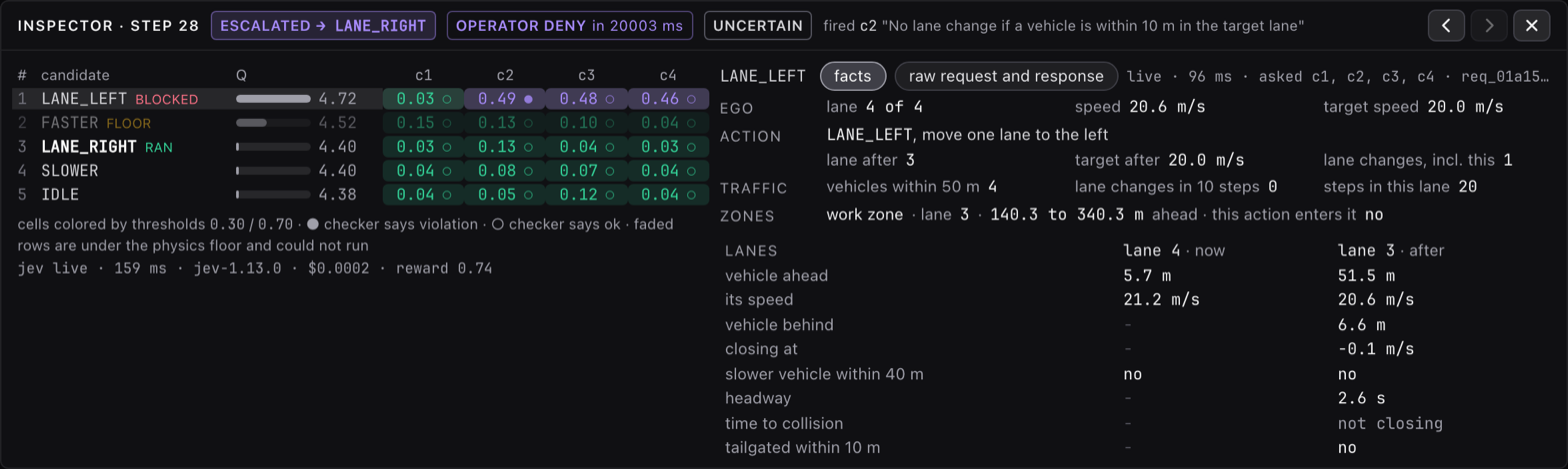
The inspector header
| Item | Meaning |
|---|---|
| "Inspector · step N" | the selected step |
| Decision badge | the outcome, with → ACTION when the executed action differs from the proposal |
| "operator approve in 1840 ms" | the human answer and how long it took, for escalated steps; an override reads "operator override LANE_RIGHT in 2140 ms" |
| "uncertain" or "no compliant action" | why the step escalated; hover it for the fallback the shield had ready and its kind: safe, least bad or last resort |
fired c2 "..." |
the rule with the highest probability on the proposed action, shown unless the step was allowed; truncates first when the row is tight, with the full text on hover |
Under the candidates table a line such as jev live · 160 ms · jev-1.13.0 · $0.0002 · reward 0.83 gives the judge source for the step, wall-clock latency for all five requests, model id, cost in dollars and task reward.
The candidates table
Five rows, one per action, in the policy's ranking:
| Column | Meaning |
|---|---|
| # | rank by Q-value, 1 is the policy's choice |
| candidate | action name; RAN marks the executed action, BLOCKED marks a rank 1 action that did not run, FLOOR with a faded row marks a candidate the physics floor removed before the rules were judged |
| Q | the Q-value with a grey bar scaled between the step's minimum and maximum |
| one column per enabled rule | p(violation) for that action against that rule |
Each probability cell is colored by the step's thresholds: green below the allow threshold, rose above the block threshold, violet in between. A small mark after the number is the ground-truth checker's label: ● the checker says violation, ○ the checker says ok, no mark for a rule without a checker. Hover a cell for the rule text, the probability and the label in words. Hover a column header for the rule text.
Reading the grid answers the usual questions. Why did the top action not run: its row has a rose cell. Why was IDLE chosen as fallback: it is the first row below the top whose worst cell is green. Was Jev right: compare the color with the mark.
Click a row to make that candidate the subject of the right-hand pane.
The facts tab
The right pane shows the selected candidate's facts: the JSON Jev was sent, laid out as a table, so nothing is paraphrased and nothing is computed.
Four labelled rows lead, each a few label and value pairs. "ego" has the lane as "3 of 4", the speed and the target speed. "action" names the action and what it means, then the lane and target speed after it; a real lane change also carries the count of lane changes in the last 10 steps with this one included, the number the rate rule is judged on. "traffic" has the vehicles within 50 m, the lane changes in the last 10 steps and the steps spent in the current lane. "zones" has, per zone ahead, its name and lane with where it starts and ends in metres, and whether this action enters it, in the hazard color when it does; or "none ahead".
Under them a lanes table has one column per lane the facts describe: the current lane as "now", the lane the action leads to as "after" (the same lane for IDLE, FASTER and SLOWER, measured at the target speed after the action), and "to the right" when the action leads to lane 1, for the passing-lane rule. One row per metric: the vehicle ahead and its speed, the vehicle behind and its closing speed, a slower vehicle within 40 m, headway, time to collision and tailgating within 10 m; a column head adds "leftmost" or "rightmost" when that lane is at the edge of the road. A dash means that lane carries no such measurement, "none" means no vehicle within 200 m, and time to collision reads "not closing" when the vehicle ahead is not being gained on. A "yes" is set in bold. Hover any label for the field's name in the JSON. The sentences the operator saw in the approval queue are these same facts in prose and stay in the log record; the JSON itself is on the raw tab as the request's state.
The raw tab
"raw request and response" shows the exact exchange with Jev for that candidate: the request rebuilt from the model id, the candidate's facts as state, and the questions that were actually asked in that request; and the raw response with the per-question probabilities, usage and the request id. The line above the panes names the source, latency and the rule ids asked.
Three cases:
live · 131 ms · asked c1, c2 · req_...: a request went out for those rules. Rules missing from "asked" were already cached.- "no request sent: every answer came from the cache": nothing went over the network for this candidate.
- "no exchange in this log": an older record without exchange data.
A request to an unavailable judge appears with unavailable as the source and no response.
In replay
Everything above works identically on a replayed run, because the inspector reads the log record and nothing else. See Replay. The field-by-field record is on the Log record page.